

What is HyperWrite and How It Solves the Frustration of In‑Browser Writing Interruptions
Estimated reading time: 10 minutes
Key Takeaways:
- HyperWrite integrates seamlessly into your browser to reduce context switching.
- Offers real-time suggestions, rewriting capabilities, and citation support.
- Enhances productivity for freelancers, teams, and students by streamlining writing workflows.
Table of Contents:
What is HyperWrite?
Why Your Tabs Are Killing Productivity
Common Problems with In-Browser AI
Why These Problems Are Costly
A Practical Fix for Interrupted Workflows
Step-by-Step: Using HyperWrite in Daily Workflows
Key Outcomes and Expected Return
Practical Tips to Get the Most from HyperWrite
Conclusion
Frequently Asked Questions
What is HyperWrite — a Chrome AI writing assistant built to stop context switching
HyperWrite is a browser-based AI tool that gives real-time writing suggestions, a built-in rewriter, and citation help directly inside Chrome. If you’ve ever felt the drag of toggling between tabs, copying sources into a draft, or spending extra minutes rewriting a single email, HyperWrite aims to glue the workflow back together. Think of it as an assistant that lives in your browser window so you can keep your hands on the keyboard and your ideas in one place.
This article breaks down what HyperWrite AI can (and can’t) do: from the HyperWrite writer and HyperWrite rewriter features to citation support and email templates. We’ll compare how it stacks up when you ask “is HyperWrite better than ChatGPT?” and point out where HyperWrite fits best — email drafts, SEO blog outlines, or academic citation help — so you can decide if it should be part of your daily toolkit.
Why Your Tabs Are Killing Productivity and How HyperWrite Addresses It
Most people misunderstand the cost of switching tabs. It’s not just two seconds here and there — it’s a cognitive restart. When drafting an email, researching a fact, or rewording a paragraph, every tab flip forces your brain to reconstruct context. That’s the main problem HyperWrite targets: offering HyperWrite Chrome integration and real-time suggestions so you don’t have to lose the train of thought. Imagine writing an email and getting tone edits, quick rewrites (HyperWrite rewriter), and relevant citations without leaving Gmail — that’s the promised ideal.
Real-world use looks like this: you start an outreach email, HyperWrite’s email writer proposes a subject line and two body variants, you accept one, and it suggests a scholarly citation format when you add a reference. That flow reduces context switching and speeds up iterations. Keep reading to see the common ways the built-in features (HyperWrite AI, templates, and citations) succeed — and where they still fall short compared to other tools.
Common Problems with In-Browser AI and How They Show Up for Users
Even with HyperWrite in your browser, several recurring issues frustrate users. First, real-time suggestions can feel generic or off-context. A HyperWrite writer suggestion might be grammatically correct but miss the brand voice or exact technical detail you need. Second, citation support is helpful but not always perfect — HyperWrite citations can speed up academic formatting, yet they sometimes require manual verification to meet strict style guides.
Third, rewriting emails still takes time if you’re unsure which prompt to use. Users often ask “how to write emails with HyperWrite” but don’t know which template or prompt will produce the best tone for a cold pitch versus an internal update. And when comparing HyperWrite vs Jasper or ChatGPT for SEO work, users find HyperWrite AI excels at inline assistance in Chrome but may offer fewer advanced prompt controls than full web apps. These are solvable problems, but they explain why some people look for HyperWrite alternatives for students or teams who need heavier research features.
Why These Problems Are Costly for Individuals and Teams
Small inefficiencies add up. Losing five minutes per task to context switching or fixing a suggested sentence multiplies across a day, costing creative momentum and billable hours. For students or researchers, incorrect or incomplete HyperWrite citations can mean extra time reformatting references — or worse, citation errors in a submission.
For teams, inconsistent tone from different HyperWrite templates creates friction: someone uses the HyperWrite email writer and another person edits the result, leading to rewrite cycles. The result? Time wasted, lower confidence in outputs, and more manual QA. Keep scrolling — next we’ll explore specific workflows, pricing considerations, and how HyperWrite templates and research features compare to competitors.
A Practical Fix for Interrupted, Tab-Hopping Writing Workflows
If your day looks like drafting in one tab, searching sources in another, and pasting into an editor in a third, HyperWrite solves that friction by bringing intelligent assistance into the browser window you already work in. Install the HyperWrite Chrome extension and you get inline suggestions from the HyperWrite writer, instant rewrites with the HyperWrite rewriter, and quick-format citations without bouncing to a citation site. That reduces context switching and keeps momentum flowing.
HyperWrite’s email writer templates remove the guesswork about tone and structure. Instead of wondering how to write emails with HyperWrite, you pick a template (cold outreach, follow-up, internal update), let HyperWrite propose subject lines and body variants, then tweak the one that best matches your voice. If you need a citation, HyperWrite citations generate basic formats you can refine — useful for assignments where you want HyperWrite for academic citations but still verify strict style rules.
For searchers asking “What is HyperWrite,” the intent is typically practical: they need an in-browser writing helper that speeds composition and reduces tab switches. HyperWrite answers that directly by providing real-time AI suggestions and tools where you type. If you’re considering HyperWrite vs Jasper or wondering about HyperWrite pricing, think of HyperWrite as the lightweight, in-context assistant focused on inline productivity rather than a full-blown studio for massive prompt engineering.
Want a deeper, hands-on comparison or pricing breakdown? Read our HyperWrite AI Tool review for features, pros, and cons. Also explore the broader selection on our AI tools page for alternatives and complementary apps.
Step-by-Step: Using HyperWrite in Daily Workflows
- Install and set up
- Add the HyperWrite Chrome extension from the Chrome Web Store and sign in. The extension lives in your browser so it’s immediately available in Gmail, Google Docs, web editors, and most text fields.
- Link accounts if you want to sync settings or access premium templates. Adjust the writing tone and language preferences in settings to better match your brand voice.
- Start typing and accept inline suggestions
- Begin writing anywhere — an email, blog editor, or social post. HyperWrite writer analyzes what you type and proposes inline completions and sentence-level suggestions.
- Accept suggestions with a keystroke or expand them for multiple alternatives. This is where the tool cuts down on rewriting time by replacing manual drafting with intelligent completion.
- Use the rewriter to iterate quickly
- Highlight a paragraph and invoke the HyperWrite rewriter. Choose whether you want a formal, casual, or concise rewrite.
- Compare variants side-by-side; paste the one that fits. This is especially useful for email sequences where tone consistency matters.
- Apply templates for structured tasks
- For cold outreach or transactional messages, open the HyperWrite email writer templates. Select intent (e.g., outreach, follow-up) and add a few context notes: recipient role, desired action, and any personalization tokens.
- The template outputs a subject line plus two or three body variations. Pick and refine, then send without leaving Gmail.
- Add and verify citations inline
- When referencing an article or paper, paste the source URL and ask HyperWrite to format a citation. It produces a quick citation in common styles (APA, MLA, Chicago).
- Always cross-check with an official style guide for academic work. For detailed rules, consult the APA citation guide or the MLA Handbook online when accuracy matters.
- Use HyperWrite for research summaries
- Paste key excerpts into the editor and ask HyperWrite research prompts to summarize findings, create bullet lists, or extract quotes.
- Combine these summaries with inline citations to keep your draft sourced and scannable. For heavier research workflows, you might pair HyperWrite with dedicated research platforms in your toolkit.
- Optimize for SEO and blog outlines
- For content creators doing SEO work, use HyperWrite AI for SEO blogs tutorial prompts: ask for keyword-optimized headings, meta descriptions, and short intros.
- Export the outline to your CMS and let HyperWrite continue to suggest sentence-level improvements as you fill in sections.
- Iterate with team collaboration
- Share drafts that started in HyperWrite with collaborators. Use the rewriter to create multiple tone versions before handing off, reducing revision rounds.
- Track the time saved per draft to quantify ROI. That metric helps when weighing HyperWrite pricing against productivity gains.
By embedding these steps into daily habits, you convert HyperWrite from a novelty into a core productivity tool. If you want examples of other AI writing tools to compare or pair with HyperWrite, see our curated list of AI tools for writers.
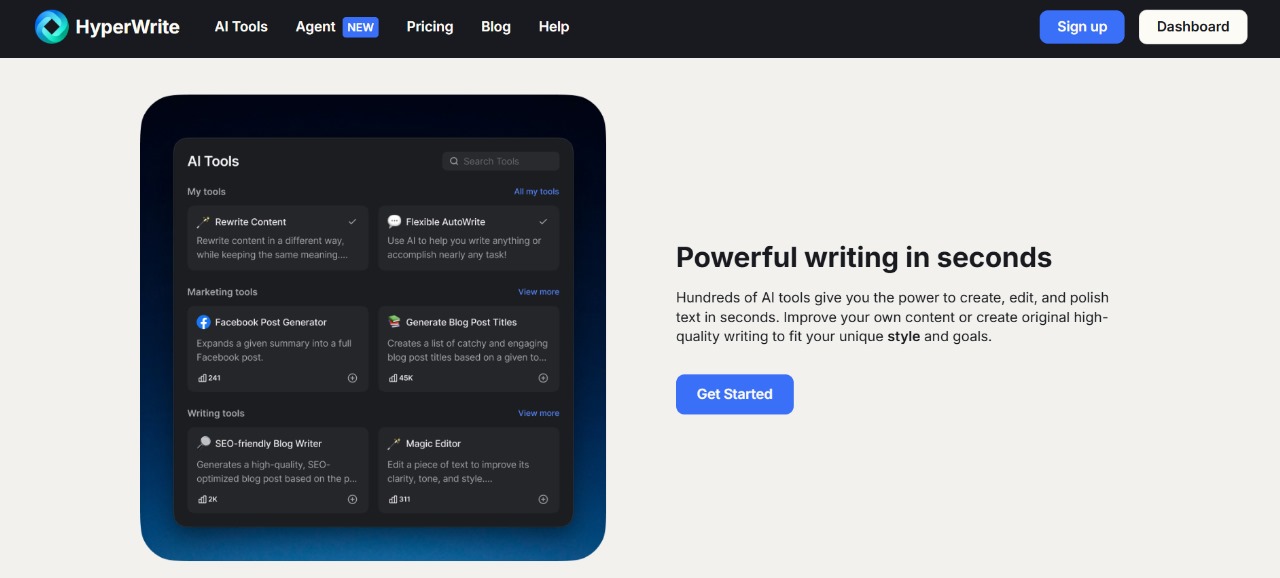
Key Outcomes and Expected Return on Time Invested
Adopting HyperWrite typically yields three measurable improvements: fewer context switches, faster first drafts, and reduced drafting cycles. Inline suggestions speed sentence completion, meaning writers spend less time staring at a blank line and more time refining ideas.
For teams, consistent templates and the HyperWrite email writer cut back on tone mismatches. Instead of three people rewriting the same outreach, one template produces repeatable, brand-aligned messages that require lighter edits. That saves managerial review time and shortens follow-up cycles.
Students and researchers benefit from quicker citation drafts. HyperWrite citations generate usable formats that cut down reference formatting from several minutes per source to seconds — though you should still verify style specifics for academic submissions. For those evaluating HyperWrite alternatives for students, this hybrid speed + manual-check approach is often preferable to fully automated citation tools that can introduce errors.
From a cost perspective, saved minutes add up. If HyperWrite reduces drafting time by 15–25% on routine emails and content tasks, the ROI shows quickly for freelancers billing hourly and for teams tracking throughput. Compared with heavier platforms in the HyperWrite vs Jasper debate, HyperWrite pricing tends to favor in-browser convenience and speed rather than expansive prompt control.
If you want to get started right away, install HyperWrite Chrome and test an email template with a simple outreach use case, then measure the time saved on the next five messages. That simple experiment answers the real question searchers have been typing into Google: What is HyperWrite — and can it make my writing faster, more consistent, and less disruptive?
Practical Tips to Get the Most from HyperWrite
Treat HyperWrite as a writing partner, not a final arbiter. Give short context notes before asking for rewrites or templates: recipient role, desired outcome, and any required keywords. That helps the HyperWrite writer produce inline suggestions that match your intent.
When using the HyperWrite rewriter, experiment with tone settings (formal, casual, concise) to build a small library of go-to variants. Save the best versions as templates so your next outreach or internal update uses consistent phrasing without redoing the same edits.
For research-heavy work, pair HyperWrite citations with a style guide check. Use the APA resource for formatting rules if you need strict accuracy: https://apastyle.apa.org/. HyperWrite speeds citation drafting, but manual verification avoids grading or publication issues.
If you do SEO content, feed HyperWrite research prompts the target keywords and competitor notes. Use HyperWrite AI for SEO blogs tutorial prompts to get keyword-friendly headings and meta descriptions, then refine for voice and factual accuracy.
Measure time savings on a few repeat tasks (five emails, two blog posts). Track minutes saved and compare against HyperWrite pricing to see your real ROI. Small experiments clarify where the tool fits into your daily toolkit.
Conclusion
HyperWrite solves a clear problem: fragmented, tab-heavy writing workflows. By putting the HyperWrite Chrome extension where you already type, it reduces context switching and delivers inline help through the HyperWrite writer and the HyperWrite rewriter. Templates and the email writer speed repetitive messaging, while quick-format HyperWrite citations cut minutes from reference formatting. It’s not a replacement for careful research or rigorous citation checks, but it is an efficient first-draft engine that makes writing faster and less tedious.
For many users—freelancers, teams, and students—the biggest wins are faster first drafts, fewer revision rounds, and more consistent tone across messages. Compared with larger studio-style platforms, HyperWrite focuses on convenience and in-context productivity rather than exhaustive prompt engineering. If your pain points are weak real-time suggestions, time lost rewriting emails, and tab-hopping, HyperWrite offers a low-friction fix you can test immediately. If you still want an in-depth look at features, pros, and cons, check our full HyperWrite review for a hands-on breakdown.
In short: if your question is “What is HyperWrite?” — it’s a browser-first AI writing assistant designed to make everyday writing faster, clearer, and less disruptive.