
What is SubMagic — Fixing Slow, Inaccurate, and Unstyled Captions for Short-Form Videos
Estimated reading time: 12 minutes
Key Takeaways:
- SubMagic automates captions and subtitles for short-form videos, saving creators valuable time.
- Enhances accuracy and styling of captions, leading to improved viewer retention.
- Offers platform-specific exports and branding features to streamline the content creation workflow.
- Supports integrations and batch processing, catering to high-volume creators and teams.
Table of Contents:
What is SubMagic: An overview of Submagic AI, Submagic captions, and Submagic features
What is SubMagic — why captions are the make-or-break feature for shorts
Common problems creators face with captions and how SubMagic targets them
Why slow, inaccurate, and unstyled captions cost creators time and money
SubMagic: a practical fix for caption chaos
How SubMagic works: step-by-step workflow
Benefits and ROI: what you actually gain
Real-world use cases: who benefits most
Pricing and value comparison (SubMagic vs CapCut and alternatives)
Hands-on: Submagic dynamic captions tutorial (quick, practical)
Quick note on integrations and team workflows
Conclusion
Frequently asked questions
What is SubMagic: An overview of Submagic AI, Submagic captions, and Submagic features
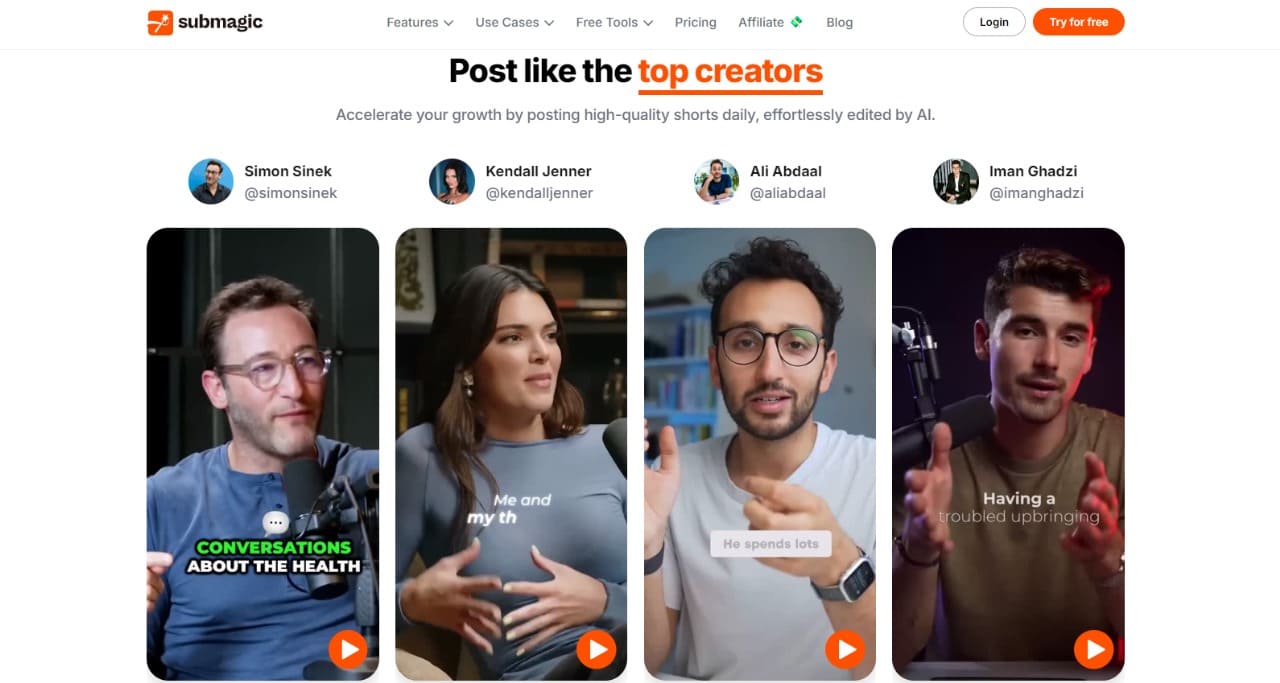
SubMagic is an AI-powered tool built to automate captions, subtitles, and dynamic text for short-form videos. As the Submagic app claims, it combines speech-to-text, styling controls, and quick export options so creators don’t spend hours hand-typing or wrestling with buggy auto-caption engines. Think of it as a caption studio that sits inside your browser or phone: auto captions, precise timing, and brand-ready styles in one place.
For creators focused on TikTok, YouTube Shorts, or Instagram Reels, SubMagic aims to replace slow manual workflows and unreliable subtitle exports. In practice, that means Submagic auto captions that you can tweak visually, Submagic video subtitles that match your pacing, and fast exports formatted for each platform. Keep reading — next we’ll dig into the exact problems SubMagic was designed to solve and why that matters for your audience retention.
What is SubMagic — why captions are the make-or-break feature for shorts
Short-form video performance is driven by the first seconds of attention, and subtitles are often the single biggest factor in whether viewers keep watching. If you’re asking “how to add captions with Submagic” or wondering whether Submagic is good for YouTube Shorts, the core issue isn’t the tool — it’s the problem those captions must solve: legibility, timing, and style that match your brand. When captions lag, are inaccurate, or look generic, viewers swipe away. That’s why creators hunt for the best automatic caption generator and compare Submagic vs CapCut or other Submagic alternatives for captions.
SubMagic’s value proposition is practical: generate Submagic subtitles quickly, let AI handle the heavy lifting, then style captions for consistent branding. Imagine recording a 30-second hook and getting perfectly timed captions in under a minute — then exporting ready-for-upload files for TikTok or Shorts. The result is higher retention, less time editing, and fewer awkward exported subtitle files that break after upload. Scroll on — we’ll cover the concrete problems SubMagic addresses and how those map to real creator workflows.
Common problems creators face with captions and how SubMagic targets them
Manual captioning is painfully slow. Typing or dragging subtitle markers across a 60-second clip can take 10–20 minutes or more. For creators publishing multiple times per day, that’s time you can’t get back. SubMagic auto captions aim to cut that time to seconds by transcribing quickly and letting you correct errors visually rather than retyping everything. This matters when you test dozens of hooks per week and need speed more than perfection.
Inaccurate auto-caption tools are another major blocker. Many speech-to-text engines trip over accents, music, or fast speech — producing buggy subtitles that confuse viewers. SubMagic’s AI focuses on short-form patterns: tighter timing windows, punctuation tuned for quick reads, and easy in-app edits. Styling is the third pain point: dull, inconsistent captions hurt brand recognition. Submagic captions include style controls so you can apply a brand font, color, or animated entrance in one click, instead of rebuilding styles clip-by-clip. These combined fixes directly tackle the search intents creators have: how to add captions to shorts, fix inaccurate auto subtitles, and find the best automatic caption generator. Keep going — next we break down why these problems cost creators more than they think.
Why slow, inaccurate, and unstyled captions cost creators time and money
Time lost on manual subtitles adds up fast. If you spend 15 minutes per video on captions and publish 20 videos a month, that’s five hours of purely caption work — time that could be spent scripting, shooting, or growing distribution. Beyond the clock, inconsistent captions mean inconsistent engagement. A single poorly timed subtitle can drop early retention by several percentage points, and on platforms optimized for short attention spans, that can make the difference between viral reach and obscurity.
Bad auto-captions also damage perceived professionalism. Errors, missing punctuation, or off-timing look sloppy and reduce trust. For brands and creators selling products or sponsorships, that perceived drop in quality can translate to lower CPMs and fewer partnership opportunities. SubMagic targets these exact costs by speeding transcription, improving accuracy for short-form speech, and offering styling features to keep captions on-brand.
SubMagic: a practical fix for caption chaos
SubMagic is the practical tool that addresses the exact workflow problems creators face: slow manual captioning, buggy automatic transcriptions, and inconsistent styling across platforms. Rather than a clumsy plugin or a generic speech-to-text service, Submagic AI combines short-form-optimized transcription with visual editing and export presets, so creators move from raw footage to platform-ready captions in minutes.
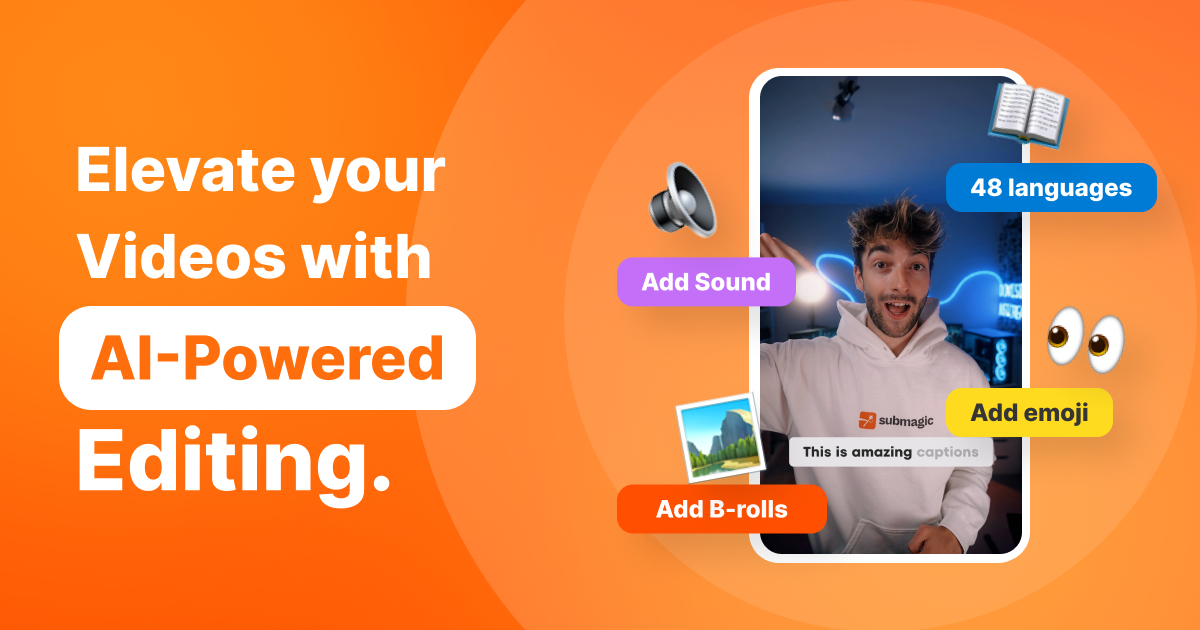
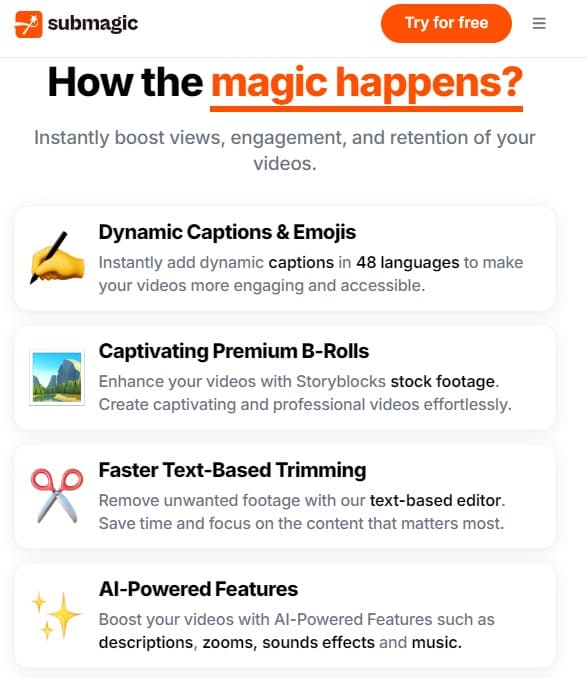
Start with your clip, let SubMagic auto-generate subtitles tuned for quick reads, then visually scrub the timeline to correct timing or misheard words. The app’s styling panel applies brand fonts, colors, shadows, and animated entrances in one click, so captions look consistent across TikTok, Instagram Reels, and YouTube Shorts. Submagic captions also support emoji captions and dynamic transitions, which help improve retention on short-form formats where visual pacing matters.
SubMagic directly targets creators asking “how to add captions with Submagic” and “is Submagic good for YouTube Shorts” by offering platform-specific exports and mobile-friendly workflows. It reduces the friction of exporting subtitle files that break on upload and eliminates repetitive re-styling when you post the same video across channels. For creators evaluating Submagic vs CapCut or hunting for Submagic alternatives for captions, SubMagic’s combination of fast, accurate Submagic auto captions and one-click styling is the differentiator that saves time while boosting viewer engagement.
How SubMagic works: step-by-step workflow
- Upload or record. Open the Submagic app in your browser or mobile device and import video clips or record on the spot. The interface is built around short-form use: single-tap import, automatic scene detection, and immediate access to caption tools.
- Auto-transcribe optimized for shorts. SubMagic’s AI performs speech-to-text using models tuned for fast speech, background music, and conversational pacing. Transcription appears as time-aligned subtitle blocks, not long paragraphs, so each caption fits a typical hook or punchline. This reduces the need for heavy manual splitting.
- Visual editing, not retyping. Instead of editing plain text, you edit captions on a visual timeline. Drag caption handles to retime, click a word to correct recognition errors, or use batch-fix suggestions for repeated names and terms. This approach cuts caption edits from minutes of typing to a few intuitive clicks.
- Style once, apply everywhere. Use SubMagic’s features to create brand presets: font, size, color, background opacity, stroke, and entrance animations. Save presets and apply them across multiple videos. This solves the common pain point of inconsistent styling and eliminates repetitive work when repurposing content for TikTok or Shorts.
- Dynamic captions and motion. For higher retention, enable animated or dynamic captions that follow the speaker or emphasize keywords. The dynamic captions tutorial inside the app shows step-by-step how to sync entrances with beats or voice emphasis—handy for creators using hooks and audiovisual cues.
- Emoji and accessibility options. Add emoji captions step by step for extra personality, or export clean SRT/WEBVTT files for platforms and translators. SubMagic also includes speaker tagging and caption length controls to meet accessibility best practices.
- Platform-ready export. Choose an export preset for TikTok, Instagram, or YouTube Shorts. SubMagic reformats caption size and position to avoid platform UI overlap, and it can hardcode captions for platforms that don’t accept sidecar files. This removes a frequent export headache and speeds up publishing.
- Integrations and batch processing. For creators with high output, batch-process multiple clips, apply a saved brand preset across a folder, and queue exports. Submagic auto captions scale from single creators testing hooks to teams publishing dozens of shorts weekly.
Throughout each step, SubMagic answers the search intent behind queries like “Submagic video subtitles” and “Submagic for TikTok” by focusing on speed, accuracy, and cross-platform compatibility. If you want a deeper technical evaluation, see this In-depth AI Tool review of SubMagic for tests on accuracy and exports. For broader options and comparisons, check the comprehensive AI tools directory that lists alternative captioning tools and workflows.
If you need platform guidelines while setting caption timings, consult TikTok caption guidelines or YouTube subtitles help for export and accessibility rules.
Benefits and ROI: what you actually gain
- Faster turnaround: Creators report cutting caption time from 10–20 minutes per short to under 90 seconds. That scales directly into more testable hooks per week and faster posting cadence.
- Higher retention and discoverability: Dynamic, accurately timed Submagic subtitles increase early retention—critical for algorithmic promotion on short-form feeds. Better captions also improve watch-time metrics and keyword discoverability since clearer text keeps viewers engaged.
- Brand consistency without extra effort: Saved style presets guarantee uniform captions across videos and platforms, reducing rework and protecting sponsorship quality. This consistency can increase perceived professionalism and CPMs for monetized channels.
- Reduced editing frustration and fewer upload errors: Platform-ready exports and hardcoded caption options minimize broken subtitle uploads and post-publish fixes, saving time wasted on re-exports or format conversions.
- Predictable cost vs. time saved: Consider Submagic pricing against hourly rates or opportunity cost. For creators who value growth metrics over raw editing time, the ROI appears in larger audiences and more time to create — not just a faster export process.
Many creators asking “What is SubMagic” find that the combined value—speed, accuracy, styling controls, and platform exports—turns captioning from a bottleneck into a growth lever. To try the app with an affiliate starter option, you can get started with SubMagic via this link.
Real-world use cases: who benefits most
SubMagic fits creators and teams who need speed, consistency, and platform-ready captions. Solo short-form creators can batch-process hooks, apply a saved style, and publish across TikTok, Reels, and Shorts without reformatting. Social managers benefit from brand presets and export queues that keep captions uniform across campaigns. Podcasters and interviewers can generate speaker-tagged subtitles for repurposed clips, while multilingual creators can export SRT/WEBVTT files for translators.
Use Submagic auto captions to rapid-fire A/B test different hooks—faster captioning equals more tests. For higher retention, turn on Submagic dynamic captions to animate keywords and match beats, which is especially effective for TikTok trends and YouTube Shorts. Teams producing dozens of shorts weekly will value batch processing and integrations that remove repetitive work.
If you need technical guidance for platform formats, review TikTok caption guidelines or consult YouTube’s subtitles help for export rules and accessibility best practices.
Pricing and value comparison (SubMagic vs CapCut and alternatives)
Exact pricing changes often, so check the latest Submagic pricing in the in-depth review linked below. Generally, captioning tools fall into free/basic plans and paid tiers for higher accuracy, batch exports, and brand features. SubMagic’s value proposition is time saved—faster caption workflows produce more publishable content, which often outweighs monthly fees.
Compared with CapCut, SubMagic prioritizes subtitle workflows: better sentence splitting, brand presets, and platform export presets. CapCut is strong for editing and effects; SubMagic is built around Submagic captions, auto-transcription accuracy, and export reliability. Other alternatives include Descript (strong on editing/transcript editing) and VEED (web-based subtitles), but SubMagic targets short-form speed and dynamic caption features that improve retention metrics.
For up-to-date price tiers and a direct comparison, see this SubMagic review and our AI tools directory for alternatives and pricing notes.
Hands-on: Submagic dynamic captions tutorial (quick, practical)
- Import your clip: Open the Submagic app and upload or record. Use automatic scene detection to split long takes.
- Run Submagic auto captions: Let the AI transcribe. It’ll create time-aligned subtitle blocks optimized for short-form pacing.
- Enable dynamic captions: In the styling panel, choose “Dynamic” or “Animated” mode. Pick an entrance style (slide, pop, reveal) and set keyword emphasis.
- Sync with beats or voice: Use the visual timeline to nudge caption handles so entrances land on beat drops or vocal emphasis. Use batch-fix for repeated names or brand terms.
- Add emoji captions step by step: Click a caption block, insert emoji where tone or emphasis helps, and preview playback to ensure legibility.
- Export with a platform preset: Select the TikTok, Instagram, or YouTube Shorts preset to avoid UI overlap. Choose hardcoded or sidecar export depending on platform support.
Pro tips: Keep caption lines short (one idea per block), use high-contrast presets for mobile, and save brand presets to reuse across videos. This workflow answers the “how to add captions with Submagic” and “Submagic dynamic captions tutorial” search intents with practical steps.
Quick note on integrations and team workflows
Connect SubMagic to cloud storage or a team drive to centralize assets. Use folder-level presets and queued exports for publishing pipelines. For large-scale operations, evaluate API or webhook support to automate captioning as part of a content workflow.
Conclusion
SubMagic removes the friction between recording and publishing by making captions fast, consistent, and platform-ready. Its focus on short-form creators—through Submagic auto captions, dynamic captions, and brand presets—translates directly into time saved and higher viewer retention. For creators worried about buggy auto-transcription and styling headaches, SubMagic’s visual editor and export presets solve those pain points while enabling creative caption techniques like emoji captions and animated keyword emphasis.
Whether you’re comparing Submagic vs CapCut or looking for Submagic alternatives for captions, the core advantage is workflow acceleration: less manual typing, fewer export errors, and predictable, branded captions across platforms. If you value speed, accuracy, and a short learning curve, SubMagic is worth testing in your content pipeline. And if you’re asking “What is SubMagic” in the context of improving short-form performance, it’s a purpose-built subtitle tool that turns captioning from a chore into a growth lever.