
What is Descript — Speeding Up Podcast Editing and Fixing Audio–Video Sync
Estimated reading time: 10 minutes
Key Takeaways:
- Descript transforms audio and video editing through text-based editing.
- It significantly reduces transcription costs and speeds up the editing process.
- Features like overdub and Studio Sound enhance audio quality and consistency.
- Descript integrates multiple workflows, including screen recording and multitrack editing.
Table of Contents:
- Introduction
- What is Descript — The Core Problem It Solves
- Common Problems Creators Face (and Where Descript Helps)
- Why Slow Editing and Bad Workflows Cost You
- Descript as the Practical Fix for Slow Podcast Workflows
- How to Use Descript: Step-by-Step Workflow for Podcast and Tutorial Production
- Key Benefits and Expected ROI
- Advanced Tips and Pro Workflows to Shave Hours Off Production
- When to Choose Descript — and When Another Tool Fits Better
- Legal, Ethics, and Best Practices for Overdub
- Conclusion
- Frequently Asked Questions
Introduction
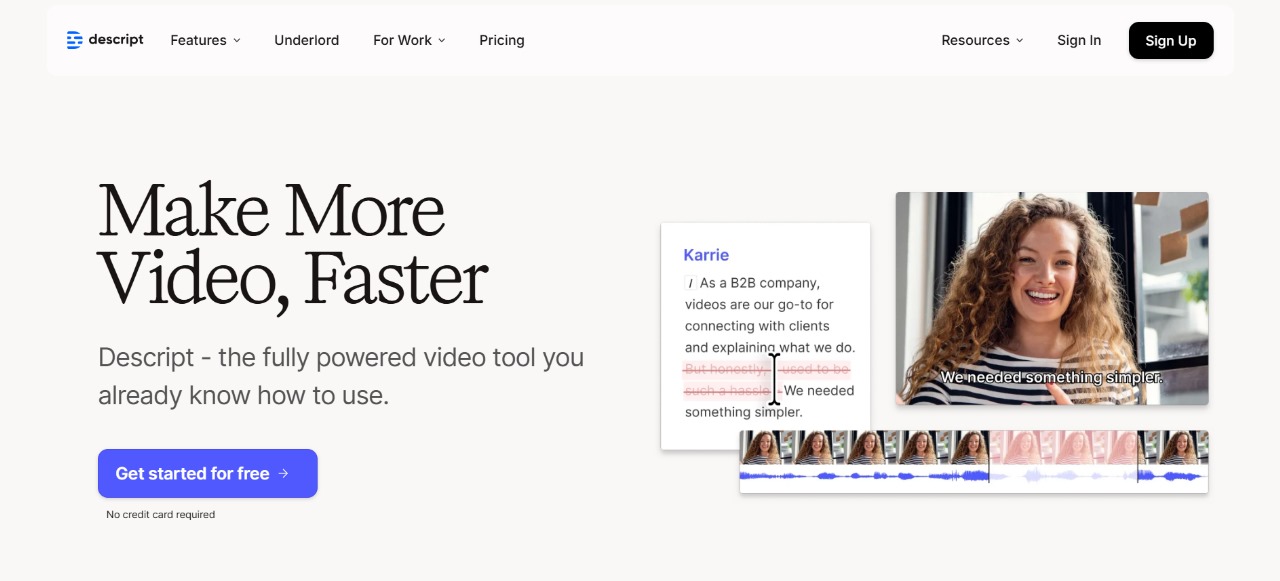
Descript is an AI-powered audio and video editor that turns recordings into editable text. Instead of wrestling with timelines, it gives you a transcript you can edit like a document — remove filler words, reorder sentences, and fix mistakes by editing words on the page. For podcasters and creators who dread manual transcription and long editing sessions, Descript promises to make the process fast and intuitive.
This article cuts straight to what matters: how Descript solves the common bottlenecks of podcast editing, transcription costs, and syncing audio with screen recordings. Read on to see concrete examples of how text-based editing, overdub, screen recording, and multitrack features replace hours of manual work.
What is Descript — The Core Problem It Solves
The root problem isn’t bad audio; it’s slow workflows. Traditional audio and video editing forces you into a waveform timeline, hunting ums, pauses, and breaths visually. That means hours of zooming, cutting, and re-listening. Descript flips that: you edit the transcript and the audio follows. Imagine editing a Word document instead of slicing hundreds of audio clips — that’s the productivity leap at the heart of What is Descript.
For creators who publish weekly episodes, this change is transformative. Removing filler words like “um” or “uh” becomes a find-and-replace task instead of a tedious scrub-and-snip job. And when you add features like overdub (voice cloning) or studio sound to clean up audio, Descript removes not only time friction but also the need for expensive freelance transcribers. Keep scrolling — next we’ll unpack the specific problems Descript addresses and how it stacks up against traditional tools.
Common Problems Creators Face (and Where Descript Helps)
Manual Transcription is Costly and Slow
Paying for human transcription or spending hours typing eats budget and time. Many creators delay publishing because they wait for transcripts or spend days transcribing. Descript’s automatic transcription dramatically reduces that wait, turning a multi-hour task into minutes. The transcript isn’t perfect, but it’s editable in-line, which is the real time-saver.
Removing Ums/Ahs and Filler Words is Tedious
Edit out every “um” manually and you lose your afternoon. Traditional editors force you to scrub audio visually; every small cut risks popping edits or misaligned breaths. Descript’s text-based editing lets you delete fillers like you delete words in a document, preserving natural pacing with minimal effort.
Syncing Audio to Screen Recordings and Multitrack Sessions is Hard
When you record a tutorial, syncing the presenter’s audio with screen recordings and interview tracks becomes a juggling act. Without an integrated tool, you switch apps, export/import files, and pray formats don’t break. Descript combines screen recording, multitrack editing, and text-based control so you can trim a clip and have all tracks follow the change — no frantic alignment required.
These issues explain why creators search “what is Descript” and compare it to other tools like CapCut, Audacity, or Premiere. In the next section we’ll break down the real cost of these inefficiencies and why failing to solve them hurts your channel and sanity—keep reading.
Why Slow Editing and Bad Workflows Cost You
Slow editing doesn’t just waste hours; it kills momentum. If episodes take days instead of hours to produce, you publish less, lose audience engagement, and miss opportunities to iterate on content. Time is the hidden cost — what you could have spent creating new episodes becomes maintenance.
Beyond time, manual workflows increase monetary costs. Paying transcribers, juggling multiple subscriptions for separate screen recorders and editors, or hiring an editor for filler-word cleanup all add recurring expenses. That’s why reducing friction with tools designed for text-based editing and features like overdub and studio sound matters: they convert wasted hours into creative output.
Descript as the Practical Fix for Slow Podcast Workflows
If your current editing flow feels like spinning plates — transcribing, hunting for ums, fixing sync issues across tracks and screen recordings — Descript collapses those steps into one workspace. It converts audio and video to an editable transcript, so deleting a sentence in the text removes the exact audio segment. That single capability alone eliminates hours of waveform scrubbing and reduces reliance on paid transcription services.
Descript’s overdub (voice cloning) and Studio Sound (AI-driven audio cleanup) handle two big pain points: re-recording and noisy tracks. Instead of booking another session to patch a single sentence, you can generate a short overdub phrase (subject to voice-consent rules) or use Clip Repair to smooth pops and background hiss. For creators producing tutorials, the integrated screen recorder captures microphone and system audio in the same project, so syncing is automatic — no more swapping between separate recording apps.
For readers asking “what is Descript” with the intent to learn whether it replaces tools like Audacity or Premiere, its unique selling point is text-based editing plus multitrack support and a built-in screen recorder. That makes it a hybrid: simpler than Premiere for quick edits, more streamlined than juggling CapCut for video and another app for transcripts. If you want a deeper, hands-on comparison or pricing details, check Descript’s official features and pricing pages for exact limits and plan differences.
How to Use Descript: Step-by-Step Workflow for Podcast and Tutorial Production
- Create a project and import mediaStart a new project and drag in your audio or video files (or hit Record to capture directly). Descript supports multitrack sessions, so import interview tracks separately. For tutorial workflows, launch the screen recorder to capture webcam, system audio, and mic input in one take.
- Auto-transcribe and scan for errorsAfter upload, Descript auto-transcribes. The transcript is your primary editor — scan it like a document. Use the search bar to jump to filler words, timestamps, or specific phrases. Automatic transcription cuts the time you’d spend typing and answers the search intent “how to edit podcasts in Descript” by making the edit surface readable and actionable.
- Edit by text; remove filler words fastSelect filler words or awkward sentences and delete them. Descript adjusts the underlying waveform automatically. Use the “Remove Filler Words” tool to run a pass that finds ums, ahs, and repeated words. For more nuanced edits preserve a natural pace by toggling short crossfades or tightening gaps.
- Use overdub and voice cloning responsiblyIf you need to fix a pronunciation or replace a line, create an overdub voice (note: overdub requires verification and is limited on free tiers). Record training audio where required; once approved, type the replacement line and generate audio that matches your voice. This is ideal for patching small mistakes without rebooking guests.
- Apply Studio Sound and audio clean-upSelect clips and enable Studio Sound to reduce background noise and polish speech. For multitrack mixes, apply EQ, compression, and panning per track. Descript’s clip-level controls and simple track lanes make it easy to balance interviews and music beds.
- Sync and edit screen recordingsTrim clips in the transcript and the associated video follows. For tutorial creators, use markers to flag moments that need visual callouts. You can pull out stills, crop the screen capture, or insert B-roll. The linked timeline ensures audio and visual edits stay in sync without manual alignment.
- Add captions and refine visualsGenerate captions directly from the transcript; edit text if the auto-caption needs correction. Choose whether to burn captions into video or export them as separate SRT files. This covers the common YouTube need for accurate captions and accessibility.
- Export with platform settings in mindWhen ready to publish, pick export settings for YouTube (H.264, 1080p recommended, and choose whether to export separate stems or a single mix). Use the “Publish” options to upload to YouTube or export high-quality WAV/Stems for external mastering. For a detailed guide on export settings, Descript’s help center outlines recommended codecs and resolutions.
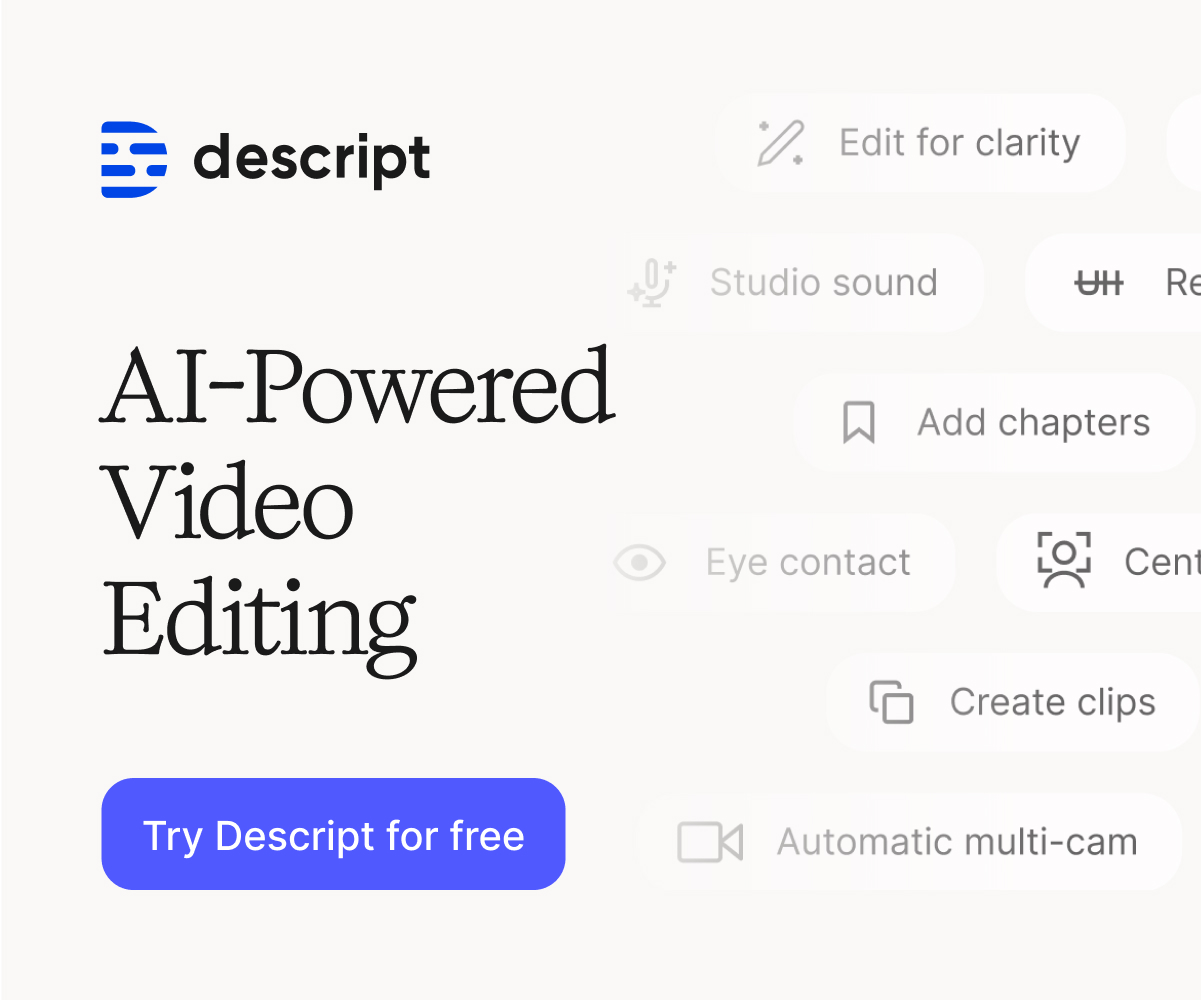
If you want a full walkthrough and technical screenshots, our Descript AI Tool review covers real-world examples and step-by-step screenshots to get you from import to publish. Also see our catalog of recommended AI tools for creators to compare workflows across apps.
Key Benefits and Expected ROI
- Faster turnarounds — The biggest measurable gain is time: episodes that used to take a full day can be cut to a few hours. Faster publishing means higher audience retention and more opportunities to iterate, which translates directly to channel growth or client throughput.
- Lower costs — Automatic transcription and text-based editing reduce spend on freelance transcribers and lower editor hours. Over time, saved labor often offsets Descript pricing, especially for weekly shows. Note that advanced features like overdub voice cloning are gated by plan level, so compare Descript pricing to your production volume.
- Higher audio quality and fewer re-shoots — Studio Sound and overdub reduce the need for costly retakes and studio time. For interviews and on-location recordings, that can save both travel and reshoot costs while keeping episodes sounding polished.
- Simplified toolchain — Combining screen recording, multitrack editing, and text editing in one app removes the need for separate subscriptions for a recorder, editor, and transcript service. That simplification reduces technical friction and the inevitable format-export headaches when moving between apps.
- Better consistency and brand voice — With overdub and reusable templates, you can maintain a consistent intro, ad read, or voiceover across episodes. That improves brand professionalism without adding recurring recording sessions.
For creators asking “what is Descript” while weighing ROI, the hard math is simple: multiply the hours you save per episode by your hourly cost, add subscription savings from eliminated tools, and subtract plan fees — for many creators, Descript pays for itself within weeks. What is Descript in practice? It’s an editing platform designed to remove friction and let you publish faster.
Advanced Tips and Pro Workflows to Shave Hours Off Production
- Use keyboard shortcuts and templates — Descript’s shortcuts speed navigation and common edits; create project templates with pre-set tracks, intro/outro clips, and caption styles so every episode starts with the same structure. For multitrack mixes, label interview tracks and apply consistent EQ/preset chains to save time in future episodes.
- Leverage markers, comping, and multitrack editing — Drop markers during the recording or first pass to flag sections that need cleanup or B-roll. Use multitrack lanes to comp the best lines from multiple takes, then finalize with Studio Sound for a quick polish. For detailed guidance, Descript’s help center has step-by-step articles on comping and multitrack workflows (see Descript Help Center).
- Automate repetitive tasks — Use the “Remove Filler Words” and “Shorten Gaps” tools as a bulk pass, then fine-tune manually to keep natural cadence. Export templates for YouTube with recommended Descript export settings for YouTube (H.264, 1080p, caption burn-in) to avoid reconfiguring settings per project.
- Collaborate without version chaos — Invite teammates to comment or edit in the same project; version history and exportable stems keep accountability.
When to Choose Descript — and When Another Tool Fits Better
Best fit: audio-first creators, tutorial makers, and small teams that need fast turnarounds. Descript excels for podcast editing, text-based editing, and integrated screen recording for tutorials. Its overdub voices and Studio Sound solve the common pain points of re-records and noisy tracks.
When to pick CapCut or Premiere instead. For mobile-first short-form social edits, CapCut offers speed and trendy effects—so choose CapCut for on-the-go, platform-native clips. For heavy visual effects, color grading, and complex timelines, Premiere still leads. Compare Descript vs CapCut and Descript vs Audacity vs Premiere by matching your priority: transcript-driven edits (Descript), deep waveform manipulation (Audacity), or cinematic video post-production (Premiere).
Budget note: check Descript pricing against your episode frequency. If you publish weekly, saved editor hours and transcription costs often justify a subscription. For a clear price comparison and feature list, see Descript’s pricing page.
Legal, Ethics, and Best Practices for Overdub
Respect consent and transparency. Descript’s overdub voice cloning requires user authorization and training audio; it’s built to prevent misuse. Always obtain explicit permission from guests before creating a voice clone and disclose synthetic edits where appropriate.
Keep data safe. Use private projects for sensitive interviews, limit access via project permissions, and export stems when handing audio to third parties. If you need enterprise-level controls, check Descript’s documentation on team management and security policies.
Conclusion
Descript simplifies the most tedious parts of podcast editing and tutorial production by turning audio into editable text, integrating screen recording, and offering AI tools like Studio Sound and overdub. That combination addresses the core bottlenecks creators face: slow manual transcription, time-consuming filler removal, and the headache of syncing separate audio and video files. For many creators, Descript replaces a multi-app toolchain—reducing costs, speeding turnarounds, and improving consistency across episodes.
It’s not a one-size-fits-all replacement for advanced video suites or deeply technical audio editors, but its strengths are clear: intuitive text-based editing, multitrack support, and workflow automation that scales. Use Descript when speed, clarity, and accessibility matter more than fine-grain waveform mastering. To decide if it fits your setup, weigh Descript pricing against the hours you’ll save and test workflows like overdub voice cloning and the screen recorder for tutorials. If you want a hands-on comparison and screenshots, our detailed Descript review walks through real projects and results. Ultimately, if you’ve ever asked “what is Descript” hoping for a way to publish faster with fewer tools, Descript is the practical answer.